Parents ·
Giving a First Phone for Christmas? Read This Before You Buy
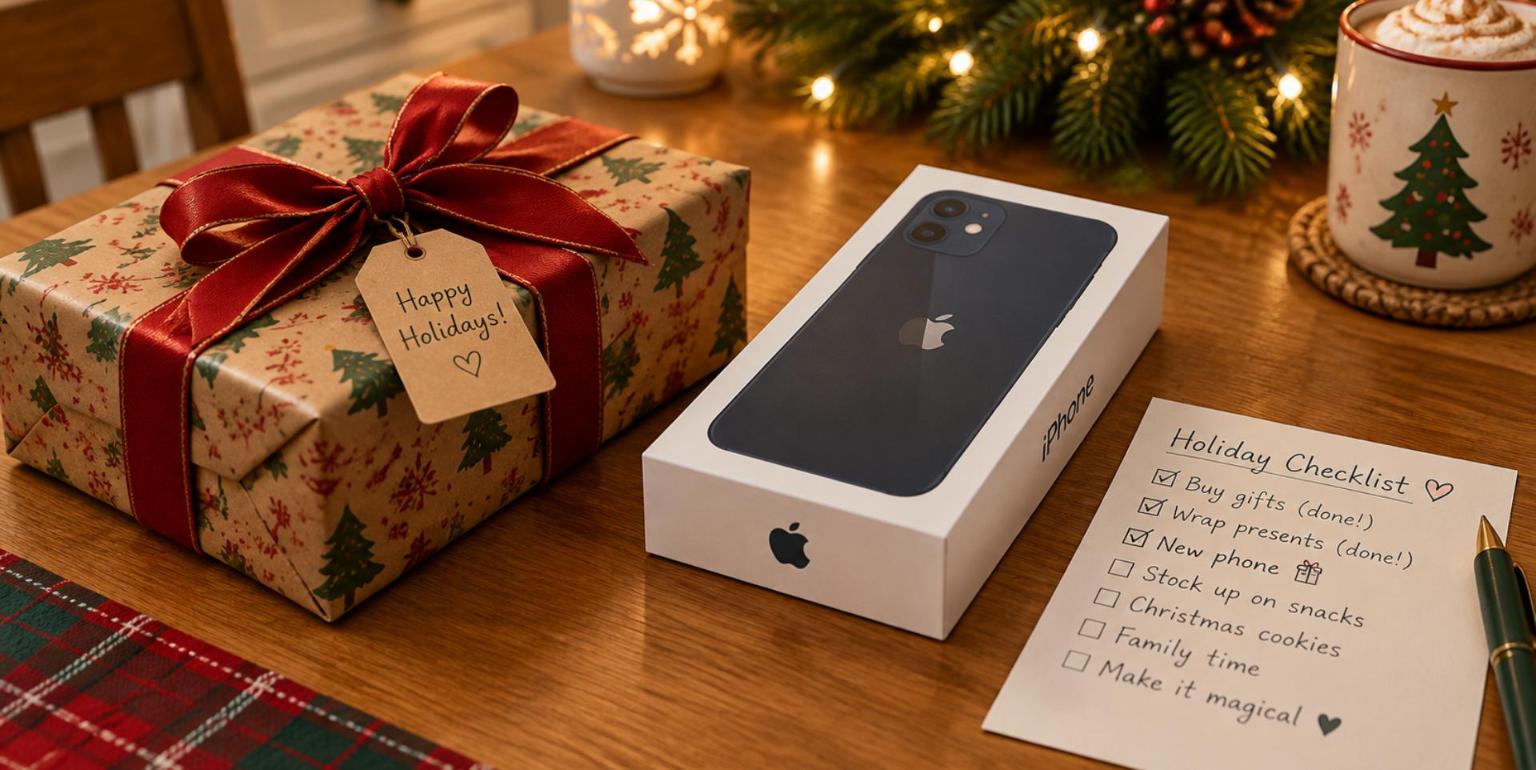
A new phone might be the most exciting thing under the tree this year, and for you the parent, probably the most complicated as well. Before the box gets wrapped, there are a few decisions that are much easier to make now, in a quiet week in November, than on Christmas morning with an excited 10-year-old waiting.
This guide covers what to decide before you buy, what your carrier offers, and how to set it up together once it's unwrapped.
Before You Buy: Five Questions Worth Answering
Harvard's Making Caring Common project suggests five questions to answer before giving a child a smartphone. They work well as a pre-shopping list:
- Is my child ready? Can they follow rules, look after their things, and keep personal information private?
- Do they need one, or want one? A phone for after-school pickups is a different purchase from a phone for the group chat.
- Have we set clear rules? Screen time, allowed apps, bedtime, and what happens when a rule gets broken.
- Do they understand the risks? Cyberbullying, strangers online, and what to do if they see something upsetting.
- Is it the right device? Match the phone to their age and needs. For some kids, a smartwatch or basic phone is enough for now.
There's no single right age. According to Common Sense Media, kids get their first phone at around 11 on average, and many get one earlier. If your answers lean toward "not yet," a simpler device this Christmas can be the right gift. You can add freedom later, and it's much harder to take it back. Our first phone guide compares the options in more detail.
Choosing a First Phone for a 10-Year-Old
If you've decided on a smartphone, a few practical points make the rest of this guide easier:
- Pick a phone that gets current software updates. Apple's newest parental controls, including iOS 26's default protections for kids, only work on phones that can run the latest iOS. A hand-me-down that can't update will miss them.
- Match the phone to your phone. If you use an iPhone, an iPhone for your child lets you manage everything from your own device through Family Sharing.
- Wipe hand-me-downs completely. Erase an older family phone and set it up fresh with your child's own account, so it doesn't carry over your apps, saved passwords, or browsing history.
- Budget for a case and screen protector. A first phone gets dropped. Plan for it.
What Your Carrier Offers
All three major U.S. carriers sell parental-control apps. They can add location sharing and the option to pause the internet across devices, but most charge a monthly fee, and they overlap with what's already free on the phone.
| Carrier | App | What it does | Worth knowing |
|---|---|---|---|
| AT&T | Secure Family | Location and arrival alerts, age-based content filters, app and website blocking, screen time limits, pause internet | $12 a month after a 30-day free trial; works on iPhone with iOS 17 or later |
| Verizon | Smart Family | Content filters, screen time management, pause internet; location alerts in the premium tier | Check current plan pricing on verizon.com |
| T-Mobile | FamilyMode | Content filters, time limits, pause internet, location sharing | Free to download; check whether the features you want need a subscription |
If you're on an iPhone, start with Apple's free Screen Time controls and add a carrier app only if you want something they don't cover, like location alerts for a specific place.
Set It Up With Your Kid
The best time to set up a first phone is with your child, not behind their back. Wrap the phone just as it came. Once it’s unwrapped, and before they run off with it, sit down together and work through the steps below. Let them set their own passcode, walk them through each restriction and why it’s there, and agree on house rules before the phone is theirs. When kids see how the settings work and why, the rules stop feeling like a trap and start feeling like a deal.
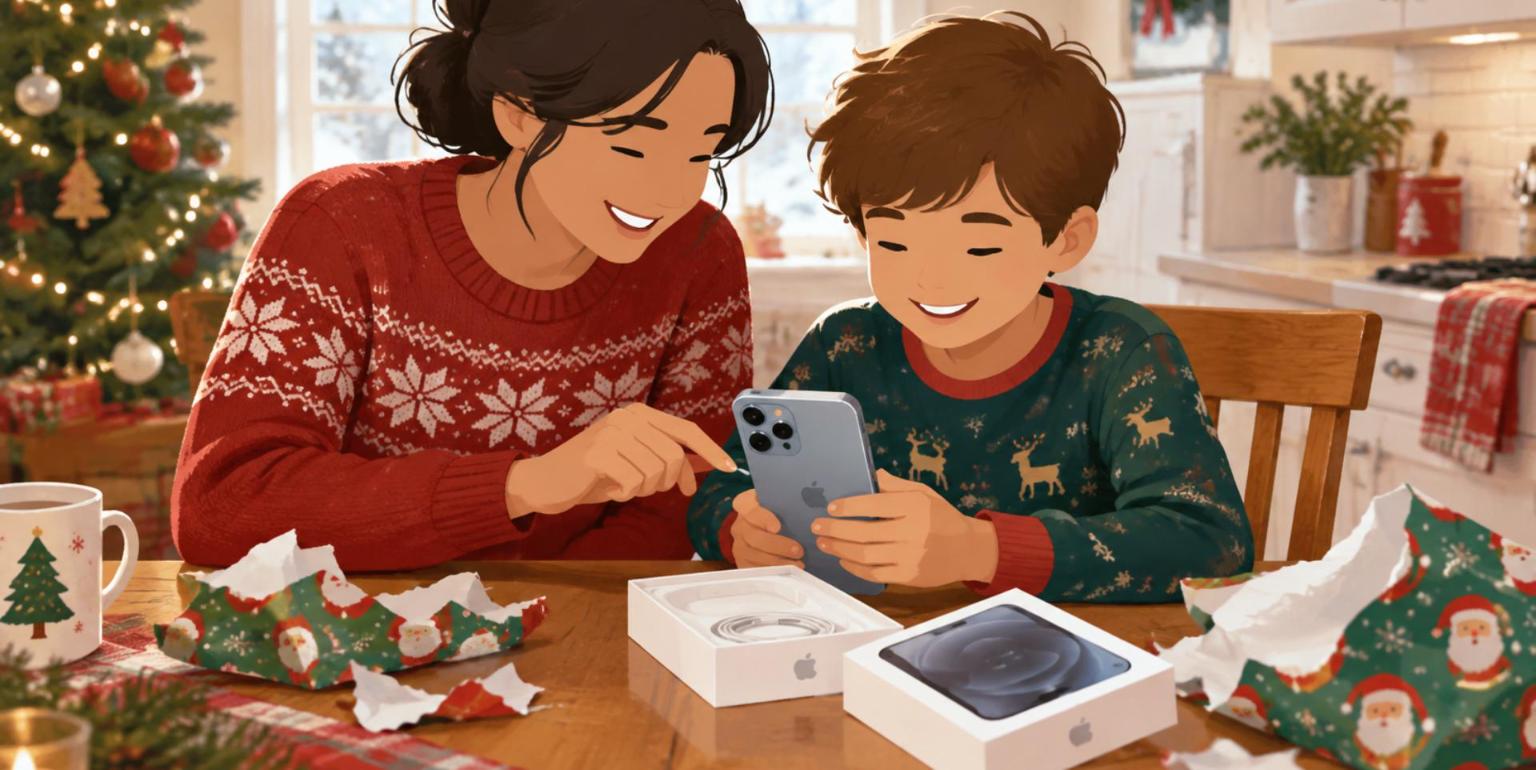
Step 1: Create your child's account
If your child is under 13, you create their Apple Account as part of Family Sharing. On your iPhone, go to Settings, tap Family, tap Add Member, then choose Create Child Account. Apple's guide walks through it. Use your child's real birthday, because Apple sets age-based protections from it. Since this happens on your phone, it’s the one step you can do ahead of time.
Step 2: Turn on the protections
For a child under 13, a Child Account in iOS 26 starts with web content filters and app restrictions turned on. Go through them together, explain each one, and add the ones that fit your family. Apple's parental controls guide covers each setting.
- Screen Time passcode that only you know
- Ask to Buy, so every app download comes to you first
- Web content filtering set to Limit Adult Websites, or Only Approved Websites for younger kids
- Communication Limits, so your child needs your approval before contacting someone new
- Downtime for school hours and bedtime
Step 3: Set the browser
A search for something harmless can still turn up explicit images. Setting a filtered browser as the default closes that gap from day one. Purus is an iPhone browser built for this. It filters explicit content with eight layers, including blocked-site lists, enforced SafeSearch, and forced YouTube Restricted Mode, and there's no in-app switch to turn it off. Its optional DNS layer extends protection to other browsers on the phone.
Purus won't catch everything, and it doesn't filter inside other apps, so keep it paired with Screen Time's app approval. Then hide or restrict Safari so Purus is the browser your child uses.
Step 4: Install the few apps they'll need
Add the few apps they'll need right away, like messaging with family, a music app, or a school app. Save anything else for later in the week, so Christmas morning isn't spent in the App Store.
Step 5: Let them set their passcode, then update it
Hand it over so your child can choose their own passcode. Then install the latest iOS update, plug it in to charge, and test that everything works. Now the phone is theirs.
Put the Rules in the Box
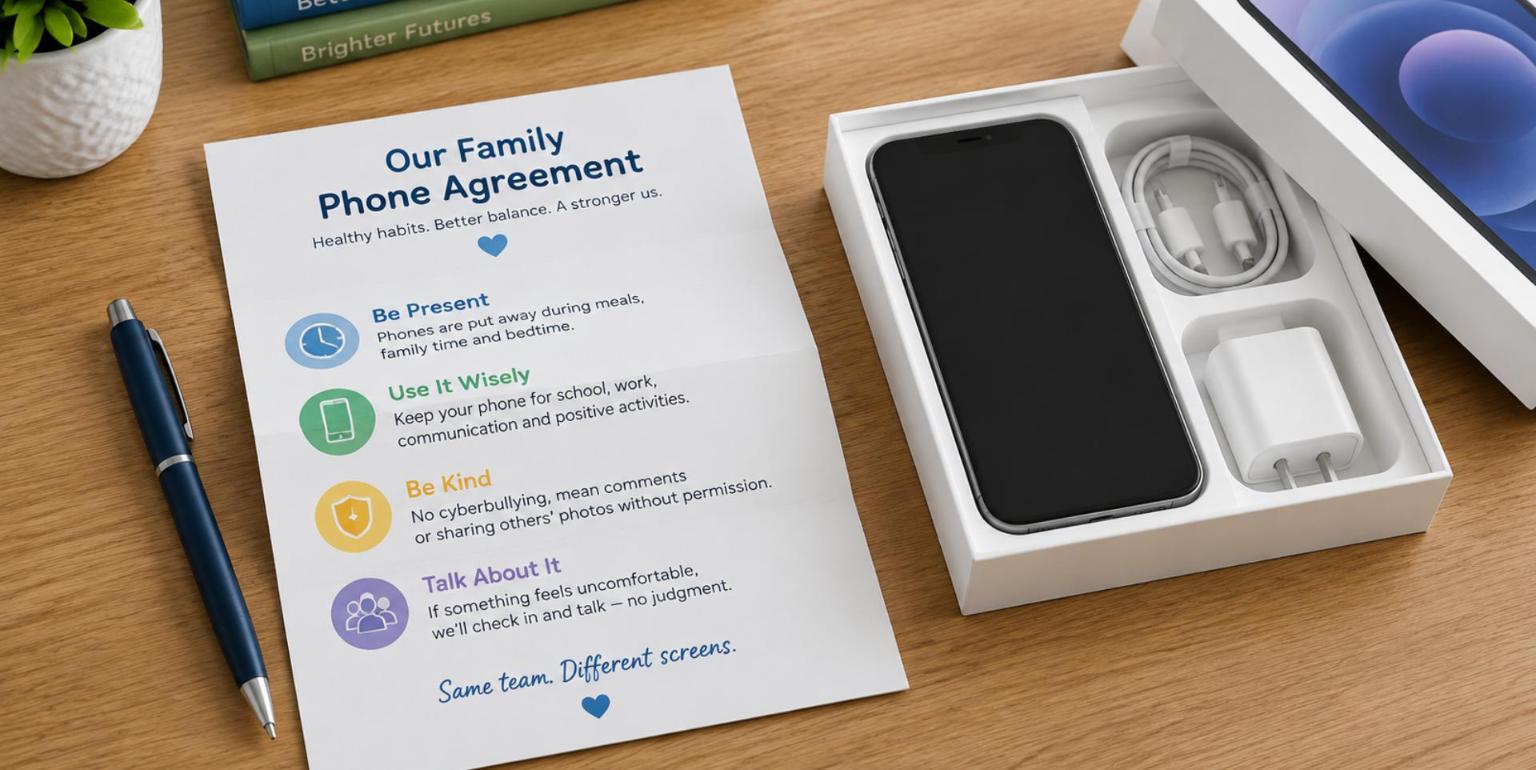
A family phone agreement written together turns rules into a shared plan. Common Sense Media recommends writing one before the phone arrives, and the American Academy of Pediatrics' Family Media Plan tool can help you build it.
Keep it short enough for a 10-year-old to read. Cover:
- Where the phone sleeps. The AAP advises keeping devices out of children's bedrooms at night. A charging spot in the kitchen works well.
- Phone-free times, like meals and homework.
- Asking before downloading any new app.
- What to do if they see something upsetting: come tell you, and they won't lose the phone for telling.
- What happens when a rule is broken, agreed on in advance.
Draft it ahead of time, print it, and tuck it in the box on top of the phone. On Christmas morning, read it together, change anything your child makes a fair case about, and both sign it before the phone comes out.
Christmas Morning Plan
- Read and sign the agreement together, then work through the setup steps above side by side.
- Add family contacts together so they can message grandparents right away.
- Keep the first day simple. Save new apps and bigger questions for later in the week.
Frequently Asked Questions
What's the best first phone for a 10-year-old?
The one that fits what your child needs now. For check-ins and emergencies, a basic phone or smartwatch may be enough. If you choose a smartphone, pick one that runs the current iOS so you get Apple's latest parental controls.
Do I need a carrier parental-control app?
Usually not on iPhone. Screen Time covers app approvals, web filtering, and limits for free. A carrier app can add location alerts or an internet pause across several devices, but most charge monthly.
Should I set up the phone before giving it?
No. Wrap it as it came and set it up together once it's opened. You can create their Child Account on your own iPhone ahead of time, but save the rest for when your child is sitting next to you, so they see each setting and why it's there.
What age can kids have their own Apple Account?
Children under 13 can't create one themselves. A parent creates a Child Account through Family Sharing. Age requirements vary by country.
Does Purus work on Android?
Not yet. Purus is for iPhone, on iOS 16 or later.
The Bottom Line
A first phone is a big gift, and the setup is part of the gift. Decide what your child needs, choose a phone that gets current updates, and put the rules in the box. Then on Christmas morning, before they run off with it, set it up side by side.
If you're setting up an iPhone, Purus can be the browser your child starts with. Learn more at purusai.com.
Sources
- 5 Questions to Ask Before You Get Your Kid a Phone, Making Caring Common, Harvard Graduate School of Education (Aug. 1, 2024)
- Parents' Ultimate Guide to First Phones, Common Sense Media
- Create an Apple Account for your child, Apple Support
- Use parental controls on your child's iPhone or iPad, Apple Support
- Apple makes Child Accounts in iOS 26 safer, AppleInsider
- Learn about the AT&T Secure Family app, AT&T Support
- Keep track of the kids with Verizon Smart Family, Verizon
- T-Mobile FamilyMode, App Store listing
- How to Make a Family Media Plan, American Academy of Pediatrics, HealthyChildren.org
- Where We Stand: TV Viewing Time, AAP (devices out of bedrooms)
- Purus, product features and limitations
Purus is an iPhone browser with eight filtering layers and no account. Try it free for 14 days.