Parents ·
Your Child Is Ready for a Phone. The Question Is… Are You?

"The goal of digital parenting isn't to control what our kids see, but to prepare them for what they will see. Connection—not control—is the ultimate internet filter."
"All my friends have phones." Most parents hear it somewhere around middle school (I think I said it around then too). Of course you don't want your child left out of the group chat. But you also know a phone opens a door to content, people, and habits you can't fully see. And in the end, they'll have to learn how to use one responsibly eventually.
Deciding on your child's first phone isn't one decision. It's several: when, which kind of device, what to lock down, and how much to watch. This guide walks through each one, including what technology can handle and what it can't.
What Age Should a Child Get Their First Phone?
There's no universal right age. According to Common Sense Media, the average age kids get their first phone is now around 11, and many get one earlier. Common Sense is clear that the decision depends on your child's maturity and your family's circumstances, not a birthday.
A more useful question is whether your child is ready. Ask yourself:
- Do they follow rules and accept limits? Think homework, chores, and turning off the TV without a major fight.
- Do they keep track of their things? A child who regularly loses jackets and water bottles will probably lose a phone too.
- Do they think before they act? Impulse control matters when one tap can send a photo to an entire class.
- Do they understand privacy? They should know why personal details and location don't get shared with strangers.
- Can they handle conflict with friends? Group chats amplify every disagreement.
Also ask why they need a phone. "I need to call you after practice" and "I want to be in the group chat" lead to very different devices.
If most of your answers are "not yet," that doesn't have to mean no phone. It may just mean a simpler one.
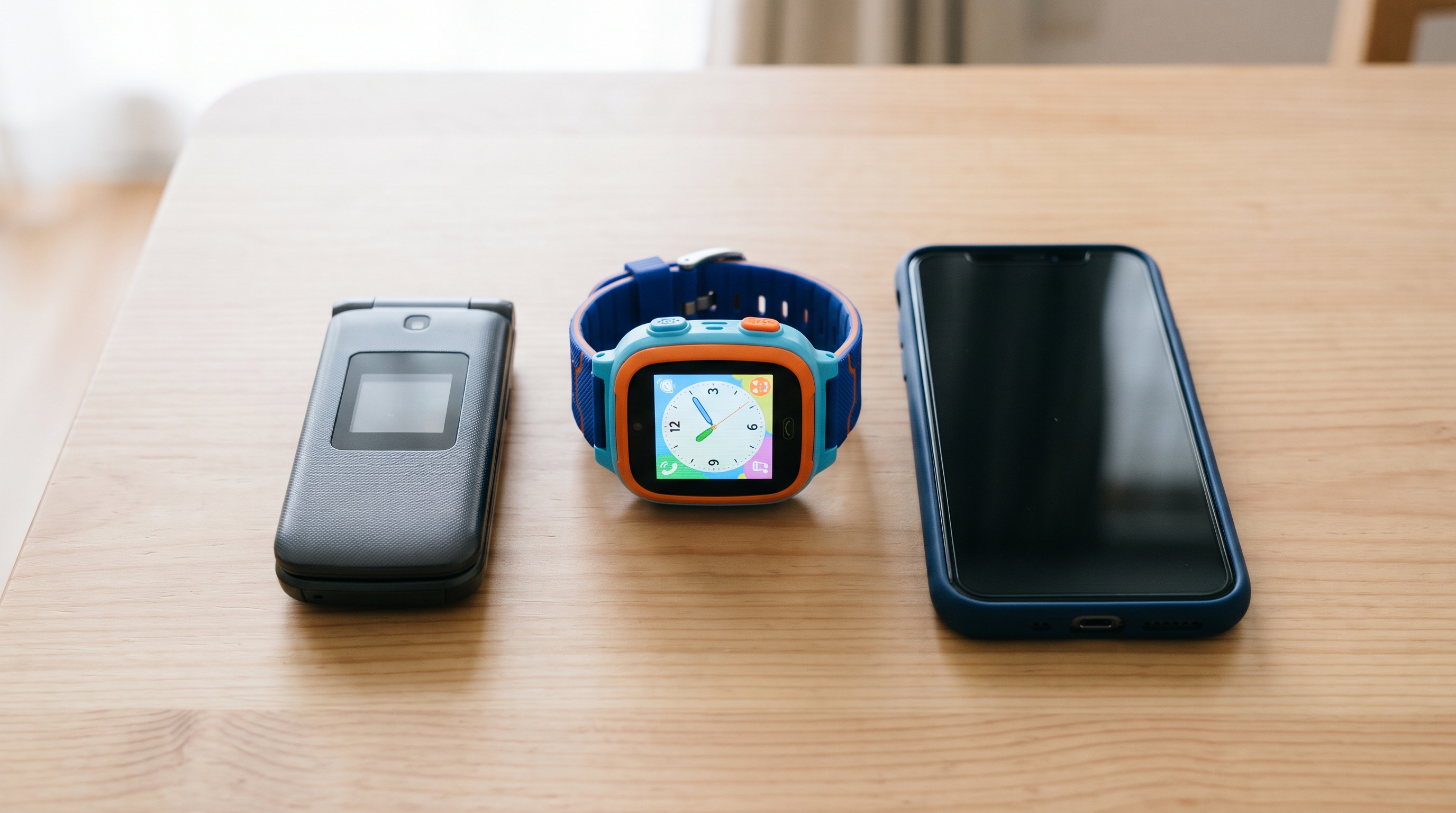
Kids Phone Options: You Don't Have to Start With a Smartphone
Many parents assume the choice is a full smartphone or nothing. In practice, there's a range of kids phone options, and Common Sense Media notes that starting with a basic phone or smartwatch can help kids build healthy habits before they move to a smartphone.
| Phone type | Best for | What it allows | Trade-offs |
|---|---|---|---|
| Basic phone or smartwatch | Check-ins and emergencies | Calls and texts, often with location sharing; no web browsing or app store | Kids outgrow it quickly; texting can be clunky |
| Kid-focused phone | Messaging with built-in guardrails | Calls, texts, parent-approved contacts, and a limited set of approved apps | Usually requires specific hardware or a specific plan; fewer apps |
| Restricted smartphone | A first step toward independence | A standard smartphone with the browser, app store, and contacts locked down by a parent | You have to set it up and maintain it; determined kids look for workarounds |
| Smartphone with parental controls | Kids who've shown consistent responsibility | Full browsing and apps, within limits you set | Most exposure to explicit content and social pressure; needs ongoing conversation |
The best first phone for kids is the one that matches your child's actual needs today. It's much easier to add freedoms over time than to take them away.
The Risks Parents Should Plan For
Once kids are online, they tend to stay there. In a 2025 Pew Research Center survey of U.S. teens ages 13 to 17, about 4 in 10 said they're online almost constantly. Roughly 9 in 10 use YouTube, and 64% use AI chatbots, about 3 in 10 of them daily. Those are teens, not 11-year-olds, but they show where phone use heads.
It helps to sort the risks into two groups: the ones settings can reduce, and the ones only you can handle.
✅ Risks technology can reduce
- Explicit content and unsafe searches: web filters, SafeSearch, and YouTube's Restricted Mode cut down what reaches the screen.
- Unapproved apps and spending: purchase approval means every download or in-app purchase comes to you first.
- Contact from strangers: on iPhone, you can limit calls and messages to approved contacts.
- Late-night use: scheduled downtime or bedtime locks most apps overnight.
💬 Risks that need conversation and supervision
- Peer pressure and cyberbullying: no setting fixes a cruel group chat. Your child needs to know they can come to you.
- Oversharing: kids rarely think about what a photo's location tag or a public post reveals.
- Using the phone to escape feelings: the American Academy of Pediatrics encourages families to plan how media fits around sleep, homework, and time together, not instead of them.
- AI chatbots: kids may trust wrong answers or share personal details with a chatbot as if it were a friend.
One conversation matters more than any setting: tell your child what to do when they see something disturbing. Make it clear they won't lose the phone for telling you.
How to Set Up Parental Controls on a Child's Phone
Set up parental controls for a child's phone before you hand it over. If you can, do it together and explain each setting as you go. Kids accept rules more readily when they understand the reason behind them.
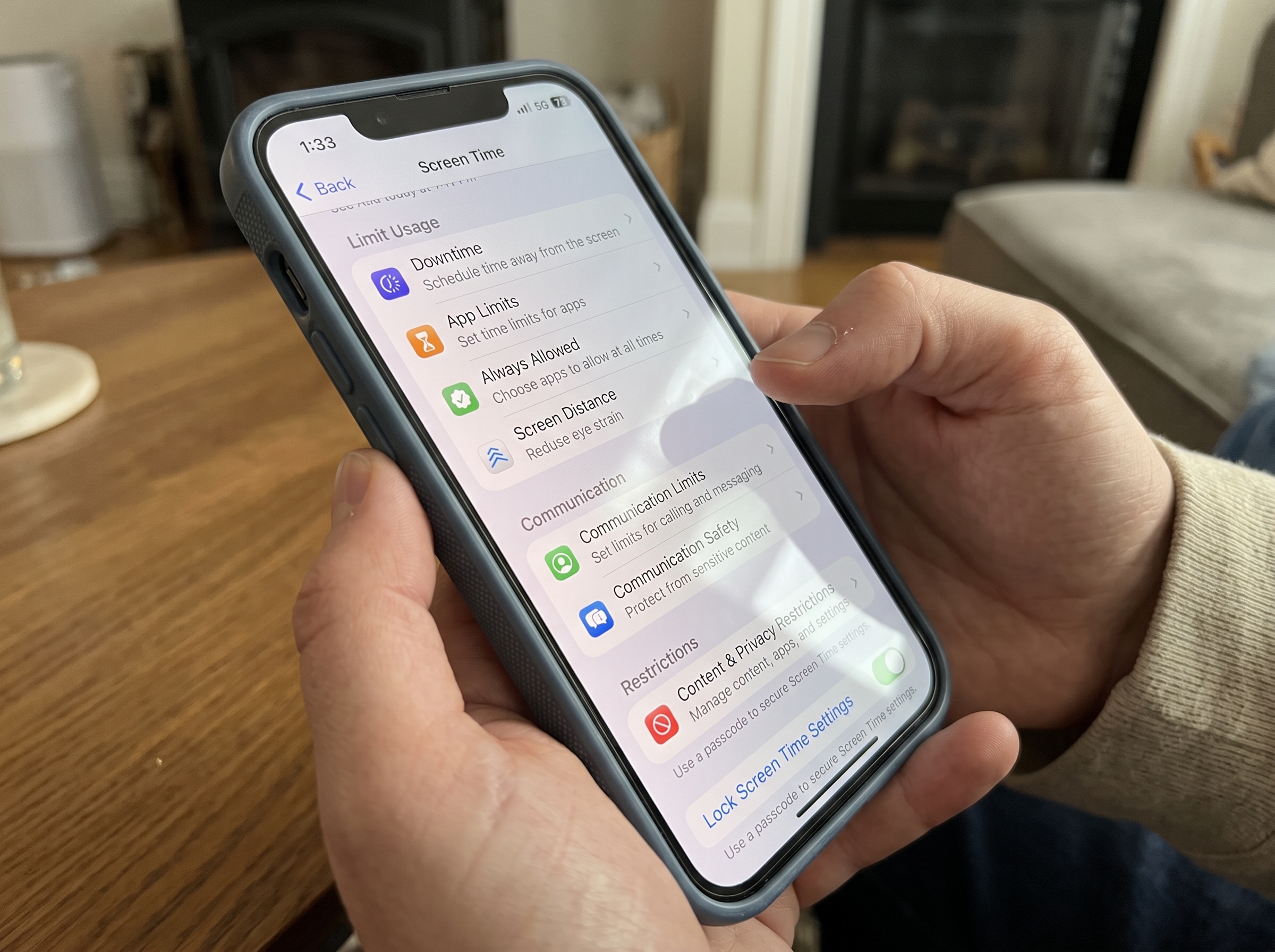
🍎 iPhone: Screen Time
Apple's controls are built into every iPhone. Your child's Apple Account needs to be part of your Family Sharing group first. Menu names have changed in recent iOS versions, so keep Apple's parental controls guide open as you go.
- Set up Family Sharing and add your child's account.
- Turn on Screen Time for your child and create a Screen Time passcode only you know.
- Filter web content to limit adult websites, or allow approved websites only for younger kids.
- Turn on Ask to Buy so downloads and purchases need your approval.
- Limit communication to approved contacts.
- Turn on Communication Safety, which helps detect and blur nudity in photos and videos your child receives.
- Schedule downtime and app limits for school hours and bedtime.
🤖 Android: Google Family Link
Google Family Link manages Android devices and Google accounts. Google suggests budgeting about 15 minutes for setup and recommends Android 7.0 or later on your child's device. You can manage it from your own Android phone or iPhone.
- Create or link a supervised Google Account for your child.
- Install Family Link on your own phone and link the accounts.
- Require approval for Google Play downloads and purchases.
- Turn on SafeSearch and website restrictions.
- Set daily limits and a bedtime that locks the device overnight.
🔒 Closing the browser gap
Built-in controls are a strong foundation, but they have gaps. If your child can install a different browser, or open web pages inside other apps, some of your filtering may not follow them. The first fix is simple: require approval for every new app, so the browser you set up stays the one they use.
On iPhone (and coming soon to Android), this is the gap Purus was built for. Purus is an iOS browser that blocks explicit content, ads, and unsafe searches automatically, with no account or subscription required. It stacks eight filtering layers, including blocked-site lists, keyword scanning, enforced SafeSearch on major search engines, and forced YouTube Restricted Mode. All filtering happens on the phone itself, and there's no in-app switch to turn it off. Purus also blocks platforms like TikTok, Instagram, and Snapchat inside the browser. An optional upgrade, PurusAI, scans images as they load for $4.99 a month.

What Purus doesn't do:
- It's iPhone-only for now (iOS 16 or later). On Android, rely on Family Link's website restrictions and SafeSearch.
- It won't catch everything. No filter does, and Purus says so itself.
- Most of its protection works only inside Purus. Its optional DNS layer blocks explicit sites in other browsers too, but apps your child installs separately are outside its reach. That's why Purus recommends pairing it with Screen Time to control which browsers and apps are on the phone.
Safety vs. Trust: How Much Should You Monitor?
The goal isn't to watch everything forever. It's to coach your child toward managing the phone on their own. Secret monitoring risks backfiring: a child who discovers it may simply get better at hiding things. Transparent rules work better.
Think of filters and limits as safety equipment, like a bike helmet, not a way to spy.
Loosen the rules as your child shows responsibility:
- Younger child: you hold their passwords and review their activity together.
- Tween: you go through weekly screen time reports together.
- Older teen: they manage more on their own, within a few firm rules.
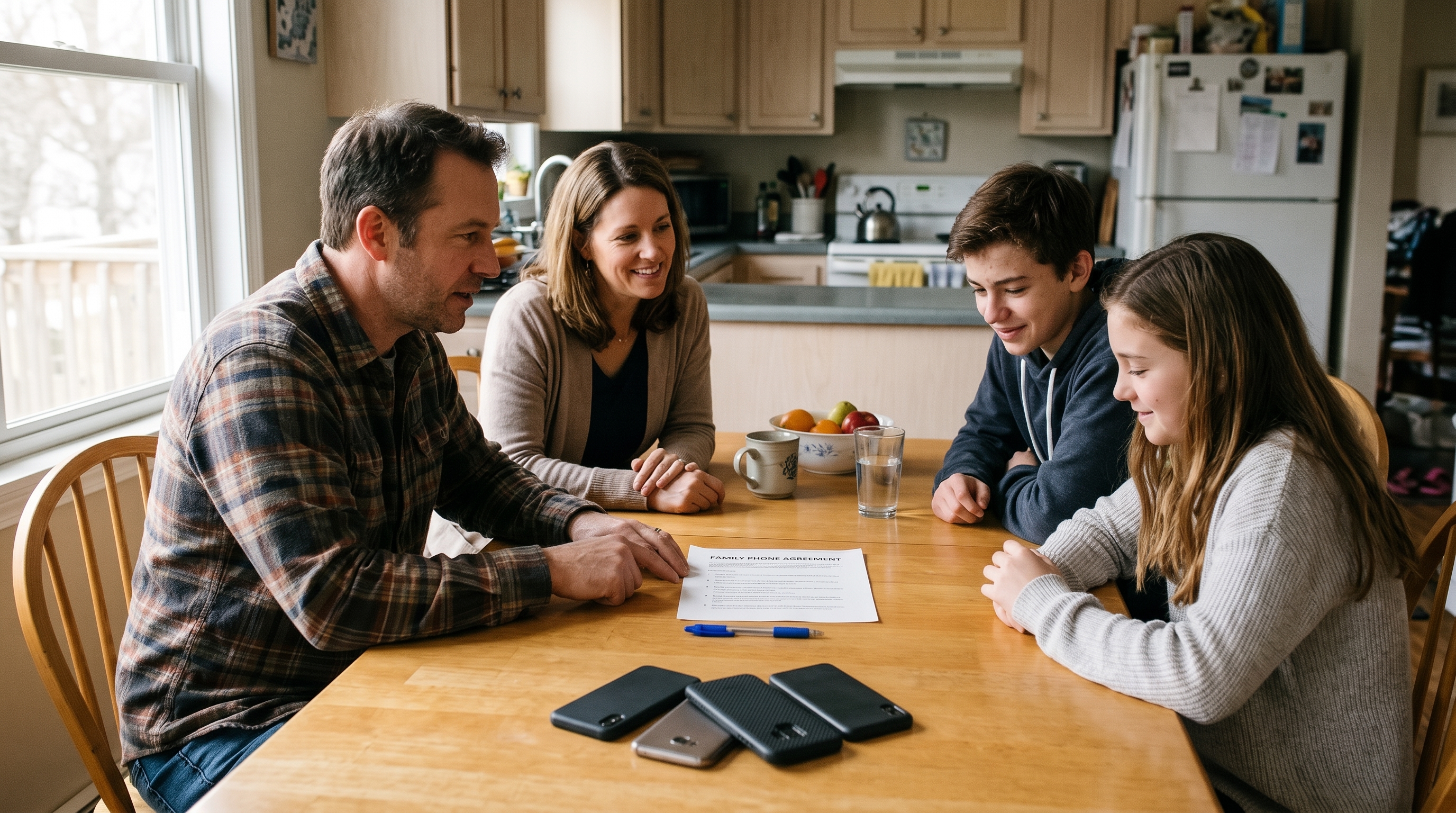
Write those rules down in a family phone agreement, which Common Sense Media recommends before the phone arrives. The AAP's free Family Media Plan tool can help. Cover:
- Phone-free times: meals, homework, and family time.
- Overnight charging outside bedrooms: the AAP advises that children shouldn't sleep with devices in their rooms.
- App and privacy rules: ask before downloading anything new; never share passwords, location, or personal details with people they don't know.
- Consequences: agree in advance on what happens when a rule is broken. Losing one app for a week usually teaches more than losing the whole phone.
- Review dates: the AAP suggests revisiting your plan at the start of each school year and during summer and holiday breaks.
✅ Your Child's First Phone Checklist
Work through these before handing over your child's first phone:
- Decide whether your child is ready, and what they actually need the phone for
- Choose the right device: basic phone, kid-focused phone, restricted smartphone, or full smartphone
- Set up Family Sharing (iPhone) or Family Link (Android)
- Create a Screen Time or Family Link passcode only you know
- Turn on approval for app downloads and purchases
- Turn on web filtering and SafeSearch
- Control which browsers are installed, and consider a filtered browser like Purus on iPhone
- Limit contacts and messaging to people you approve
- Schedule downtime and set up a charging spot outside bedrooms
- Write and sign a family phone agreement together
- Put your first review date on the calendar
Frequently Asked Questions
What's the best age to give a child their first phone? The average is around 11, according to Common Sense Media, but there's no right age for every child. Look at readiness instead: following rules, caring for belongings, and making thoughtful choices.
Will parental controls block all inappropriate content? No. Built-in controls and filtered browsers reduce exposure significantly, but none catch everything. Pair them with regular, open conversations so your child tells you when something gets through.
Should I choose a kid-focused phone or a restricted smartphone? A kid-focused phone comes locked down out of the box, which suits families who don't want to configure settings. A restricted smartphone takes more setup but can grow with your child, since you loosen the limits instead of buying new hardware.
Should I read my child's text messages? If you do check messages, tell your child up front, and do it together when you can. Spot-checks that your child knows about build trust; secret ones tend to erode it. Plan to check less as they show they can handle more.
Does Purus work on Android? Not yet. Purus is currently available only for iPhone, on iOS 16 or later. Android families can use Google Family Link's SafeSearch and website restrictions.
The Bottom Line
Your child's first phone isn't a single handoff. It's the start of a few years of coaching. Choose a device that fits what your child actually needs, set up the controls before day one, and agree on the rules together. Then keep talking, because no setting replaces a child who knows they can come to you.
Have an iPhone at home? Purus adds a filtered browser to your setup. It's free to download and takes a minute or two to set up.
Sources
- Parents' Ultimate Guide to First Phones — Common Sense Media
- How to Make a Family Media Plan — American Academy of Pediatrics, HealthyChildren.org
- Where We Stand: TV Viewing Time — AAP, source for the no-devices-in-bedrooms guidance
- Use parental controls on your child's iPhone or iPad — Apple Support
- Family Link FAQ — Google
- Teens, Social Media and AI Chatbots 2025 — Pew Research Center
- Purus — product claims, platform support, and limitations
Purus is an iPhone browser with eight filtering layers and no account. Try it free for 14 days.
